


Drupal CMS Multilingual Setup: Enabling the Recipe and Translation

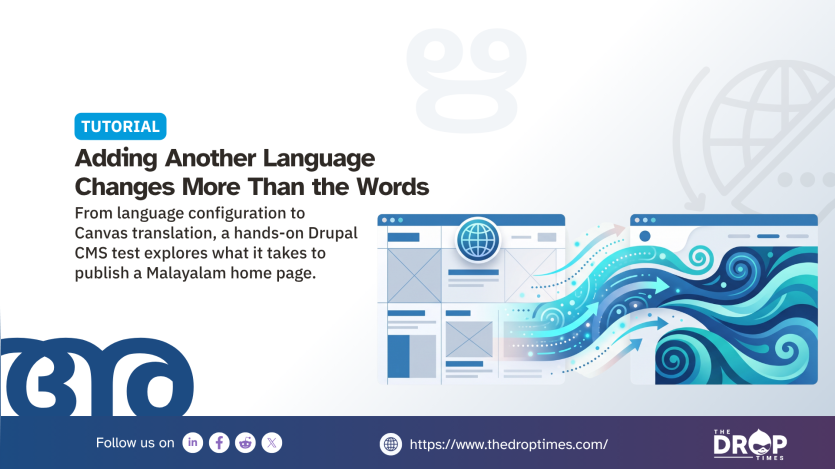
Drupal CMS 2.2 introduces a Multilingual recipe for configuring a site to publish in more than one language. It enables the main translation modules, applies initial language settings and provides a checklist for the remaining tasks, including translating pages built with Drupal Canvas. The release also adds a searchable language selector to the installer.
This walkthrough follows a fresh Drupal CMS Starter site through adding Malayalam, translating the home page with Canvas Translate and publishing it at /ml. The process was tested on Drupal CMS 2.2.7 on 1 November 2026. It worked after an unused Starter template was removed to resolve an error encountered in Canvas Translate.
The change addresses a gap identified by Dries Buytaert, Drupal's founder, in the written version of his DrupalCon Rotterdam keynote. He noted that Drupal "has long had strong multilingual capabilities" but Canvas "didn't yet support multilingual sites". He said the project had since added multilingual support to Canvas and made multilingual sites easier to set up.
What You Will Build
The result is a bilingual site with English as its default language. By the end, you will have:
- applied the Multilingual recipe
- added Malayalam and downloaded available interface translations
- enabled translation for pages, menu links and tags
- translated and published the Starter home page through Canvas Translate
Before You Start
- Use DDEV 1.25.0 or later. The project's DDEV configuration enforces
>= 1.25.0whenddev restartloads the supplied configuration in Step 1. - Open the HTTPS URL provided by DDEV. In testing, Canvas Translate appeared blank over plain HTTP. The browser reported that
crypto.randomUUIDwas unavailable; this API requires a secure context, such as HTTPS or localhost. - Choose the primary site language during installation. Config Language Lock prevents changing the default language while Canvas pages exist. Because Starter uses a Canvas page as its front page, changing the default later requires first selecting a different front page and removing the existing Canvas pages. This is different from simply adding a second language.
Versions Tested on 1 November 2026
| Component | Version |
|---|---|
| Drupal CMS | 2.2.7 |
| Drupal core | 11.4.11 |
Starter site template (drupal_cms_starter) | 2.2.0 |
| Drupal Canvas | 1.12.0 |
| Canvas Translate | 1.0.0-beta1 |
Drupal CMS Multilingual recipe (drupal_cms_multilingual) | 2.2.1 |
| Language Checklist | 1.0.0 |
| Better Content Language Settings | 1.0.0 |
| PHP | 8.3.30 (DDEV web container) |
| DDEV | 1.25.0 or later, as required by the project configuration |
These are the versions recorded in the test environment, not a claim that the tutorial has been retested against newer releases. Drupal CMS 2.2.8 was released on 2 November 2026, after testing. A Composer constraint allowing any 2.2 release may therefore install a newer package than the one used here. The drupal/core-recipe-unpack package unpacks recipe dependencies into the project's recipes/ directory. Canvas Translate 1.0.0-beta1 is a prerelease, not a stable release covered by Drupal's security advisory policy.
What the Multilingual Recipe Installs
A Drupal recipe is a package of modules and configuration applied to a site. The Drupal CMS Multilingual recipe brings together the following modules and their settings:
| Module | Type | What it does |
|---|---|---|
| Language | Core | Allows the site to use multiple languages |
Interface Translation (locale) | Core | Downloads and stores available interface text translations |
| Content Translation | Core | Allows translation of content entities, including pages and custom menu links |
| Configuration Translation | Core | Allows translation of configuration, including menu names and Views |
| Better Content Language Settings | Contributed | Adjusts content translation settings and provides a Start with recommended setup option |
| Canvas Translate | Contributed | Adds a translation workspace for Drupal Canvas |
| Language Checklist | Contributed | Provides the multilingual setup checklist |
In the Drupal CMS 2.2 announcement, Drupal CMS team member Pamela Barone explained that configuration supplied by recipes, such as content types and dashboards, previously remained in English when a site was installed in another language. Drupal CMS 2.2 introduces contributed-module support for translating this configuration while equivalent functionality is still planned for Drupal core. Recipe Interface Translation Integration (recipe_locale) tracks applied recipes so their available translations can be imported. Config Language Lock (config_language_lock) manages the language in which site configuration is stored.
Step 1: Create the Project
Create a new folder, configure DDEV for Drupal 11 and download Drupal CMS:
mkdir my-multilingual-site && cd my-multilingual-site
ddev config --project-type=drupal11 --docroot=web
ddev start
ddev composer create-project "drupal/cms:^2.2"
ddev restart
The drupal/cms package includes its own .ddev/config.yaml, which replaces the configuration created by ddev config. The restart loads the project's configuration. The ^2.2 constraint allows newer 2.2 releases. To reproduce the tested package version more closely, use drupal/cms:2.2.7 in the create-project command; transitive dependencies may still differ unless a matching lockfile is used.
Step 2: Install the Site
- Run
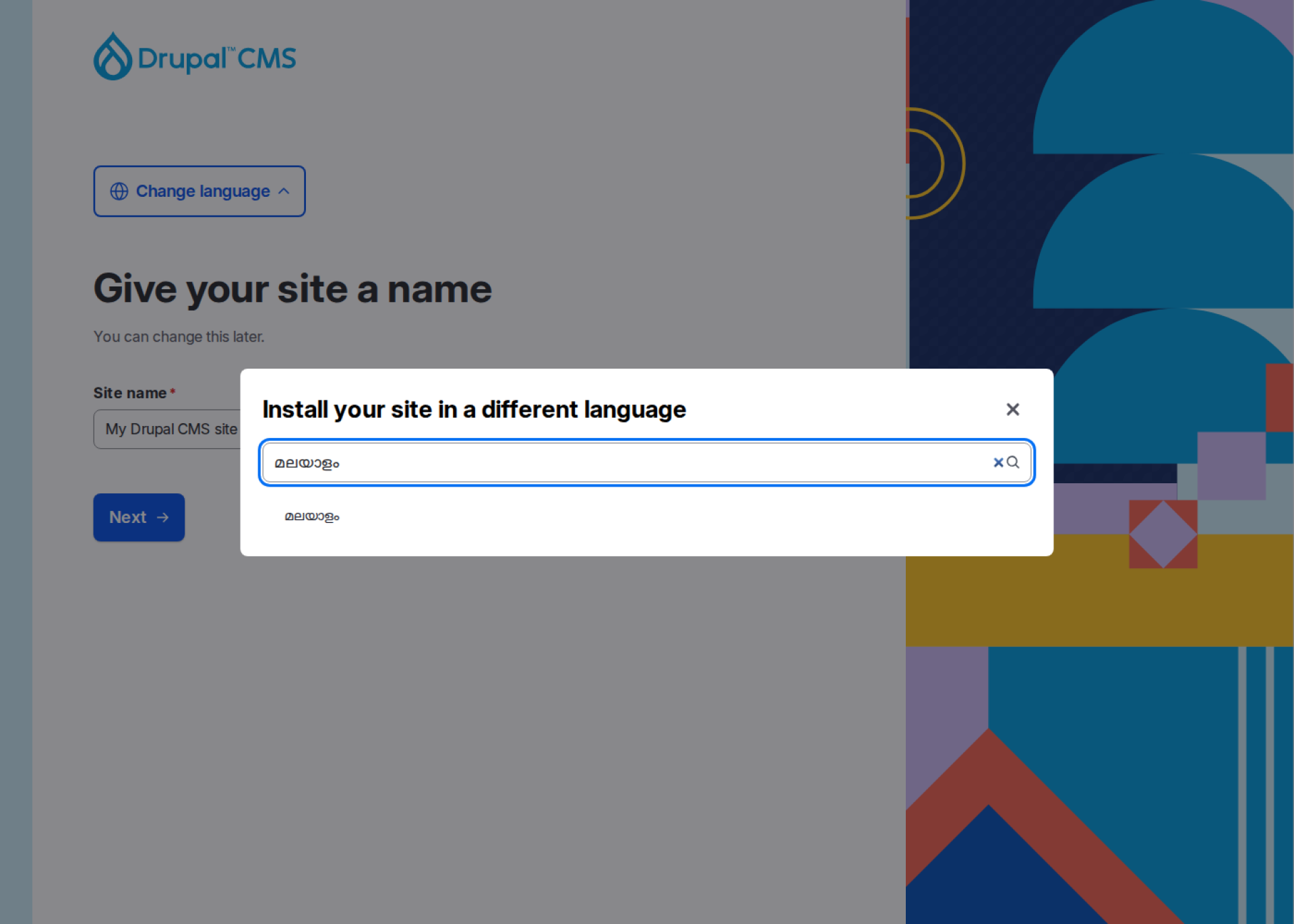
ddev launch. The installer asks for a site name and shows Change language. This opens a searchable dialogue headed Install your site in a different language. Malayalam appears as മലയാളം. For this bilingual example, retain English as the site's default language, enter a site name and select Next. - On Choose a site template, select Starter, described as a simple template with the basics, and select Next. Blank is selected by default in the version tested.
- On Create your account, enter an email address and password, then select Finish.
The installer downloads Starter, displays a setup progress bar and opens the dashboard when installation is complete.
An alternative command-line installation used in testing is:
ddev composer require drupal/drupal_cms_starter
ddev drush site:install --yes
In the tested environment, site:install installed Starter in English and Drush displayed the administrator username and generated password. Run ddev launch to sign in. Adding --locale=ml selects Malayalam as the initial site language but does not itself apply the Multilingual recipe.
Step 3: Apply the Multilingual Recipe
In the Starter project used here, the Multilingual recipe was not present until downloaded through Composer:
ddev composer require drupal/drupal_cms_multilingual
ddev drush cr
ddev drush recipe ../recipes/drupal_cms_multilingual
Composer adds the recipe under recipes/ and retrieves its dependencies, including Language Checklist and Better Content Language Settings. Testing showed that running drush recipe immediately after composer require failed with an "is not a known module or theme" error. Running ddev drush cr first resolved this in the test environment. Drush then reported Multilingual applied successfully.
After installation, the Multilingual card under Extend › Browse projects › Recommended add-ons showed Installed and a Finish multilingual setup link. The card's Install action had failed when used directly on Drupal CMS 2.2.7; see Troubleshooting.
Step 4: Open the Setup Checklist
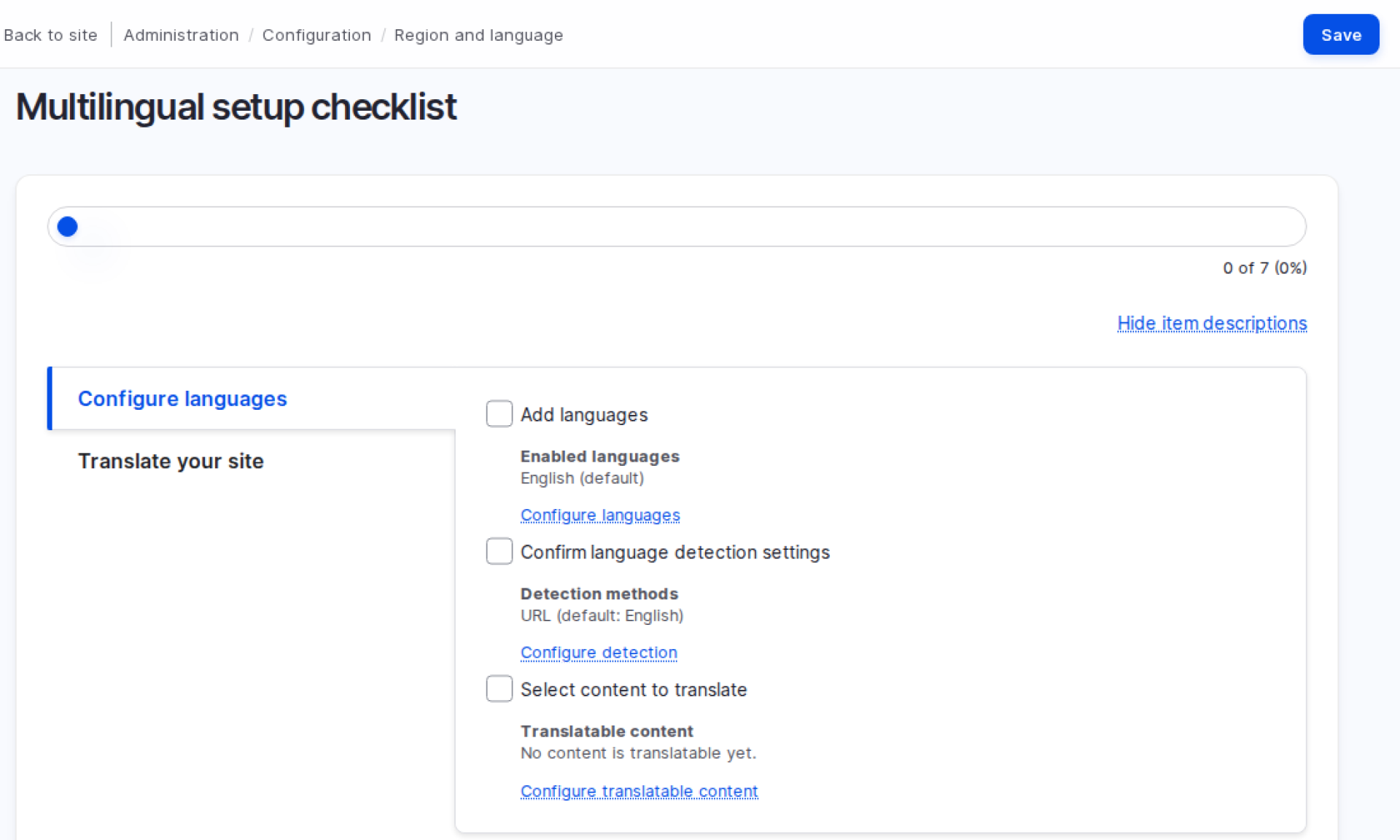
Choose Finish multilingual setup or visit Reports › Checklists. The multilingual checklist is available at /admin/config/regional/multilingual-checklist and has two tabs.
Configure languages:
- Add languages
- Confirm language detection settings
- Select content to translate
Translate your site:
- Translate Canvas pages
- Translate content
- Translate the administration interface
- Translate configuration
Each item links to the relevant settings or editing screen. In the version tested, checklist items had to be ticked off manually.
Step 5: Add a Second Language
- In the checklist's Add languages item, select Configure languages, then Add language.
- Choose Malayalam from the Language name list.
- Select Add language.
Drupal downloads available interface translations from the Drupal community translation server, so the site needs internet access. The download took a couple of minutes in the test environment. Drupal displayed the number of imported translations and the Languages page reported a translation percentage. That percentage reflects the interface strings known to that site, not every possible Drupal interface string.
Recipe configuration is translated where a corresponding translation exists. In the Malayalam test site, the dashboard heading Announcements and the content type label Utility page remained in English because translations were not available for those strings.
Step 6: Confirm Language Detection
The second checklist item, Confirm language detection settings, displays Detection methods: URL (default: English). Under the tested configuration, English pages have no language prefix, while Malayalam pages use /ml. This URL-prefix setup is sufficient for this example; separate language domains would need different settings.
Step 7: Choose What Can Be Translated
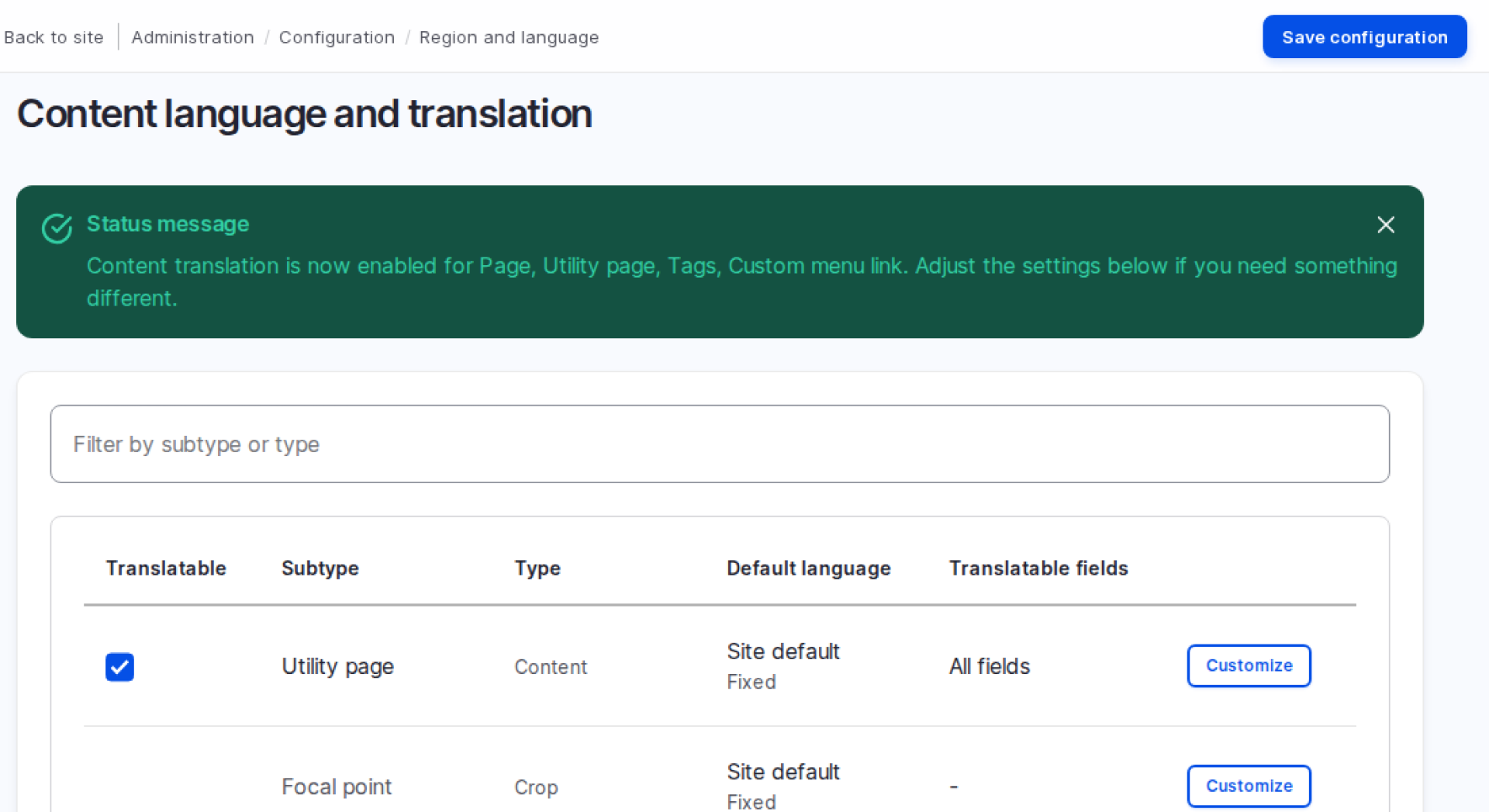
- Under Select content to translate, select Configure translatable content. The settings page displays Not sure where to start?
- Select Start with recommended setup.
The test site then reported that content translation was enabled for Page, Utility page, Tags, Custom menu link. Page is the Canvas page type. Utility page is a standard content type used by Starter for pages such as the privacy policy. Media items were not selected by the recommended setup; enable the relevant media types and fields separately if their details need translation.
Step 8: Remove Starter's Unused Utility Page Template
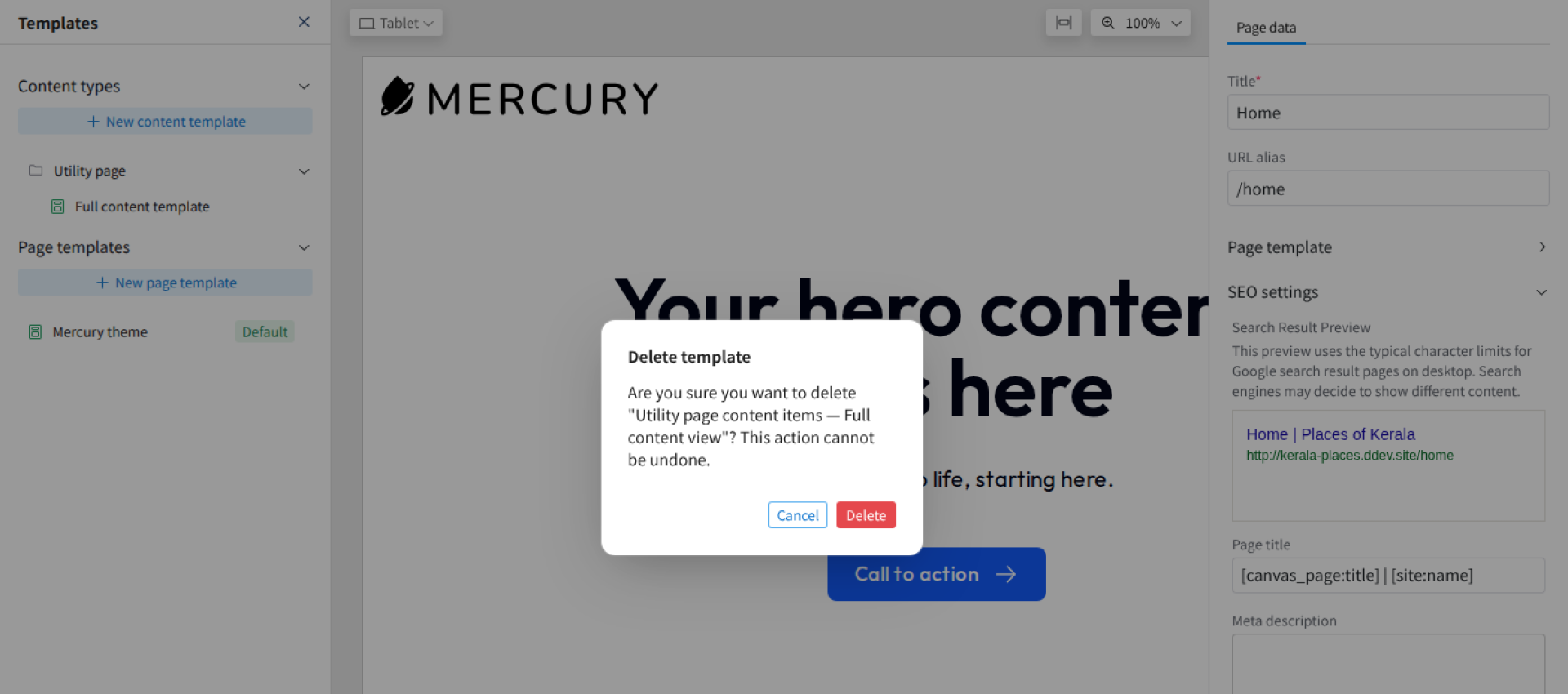
This step is a workaround for the tested Starter and Canvas Translate versions, not a general requirement of multilingual Drupal. Starter included a disabled Canvas layout template for Utility pages. In the test environment, the template contained an empty link value (url: '') that Canvas Translate could not process. Its translation dashboard and publishing screen returned an error even though the template was not in use. Related component-input validation is tracked in Canvas issue #3592174.
- Go to Content › Pages and select Edit beside Home.
- Open the Templates panel on the left of the Canvas editor.
- Under Content types › Utility page, locate Full content template, open its menu and select Delete template.
- Read the confirmation that deletion cannot be undone and select Delete if the template is not needed.
The page translation workflow could then proceed. If the Utility page template is needed for future page designs, it can be recreated. An alternative that keeps the template is described in Troubleshooting. Check newer Starter and Canvas releases before deleting anything, because this workaround was verified only against the listed versions.
Step 9: Translate the Home Page
- Open Content › Pages.
- In the home page's operations menu, select Translate. Canvas Translate lists the site languages and marks the new language Not translated.
- Select Translate beside Malayalam.
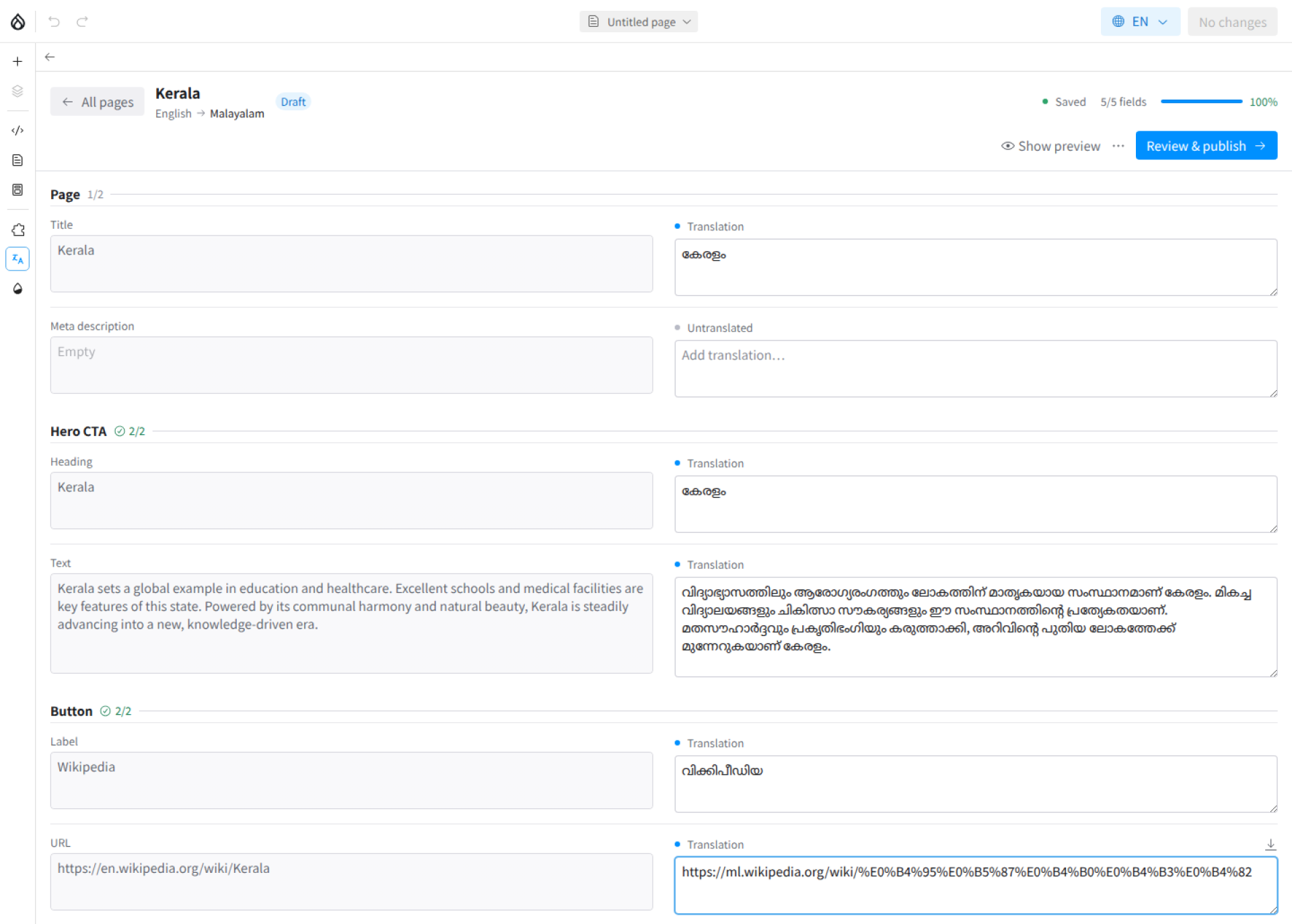
The editor places English source text on the left and an Add translation… field on the right. The Starter home page groups fields under Page (Title and Meta description), Hero CTA (Heading and Text), and Button (Label and URL). Enter the translated text as appropriate for each field. In testing, Canvas Translate saved the draft automatically and showed Draft, Saved and a completed-field counter.
Machine-assisted translation is optional. Canvas Translate has a Canvas Translate AI submodule, which the Multilingual recipe did not enable in the test. According to the module's documentation, it requires the Drupal AI module and a configured translation or chat provider. Suggested translations are placed into drafts for editorial review rather than being published automatically.
Step 10: Publish the Translation
Canvas Translate keeps drafts separate from the live translation until they are published.
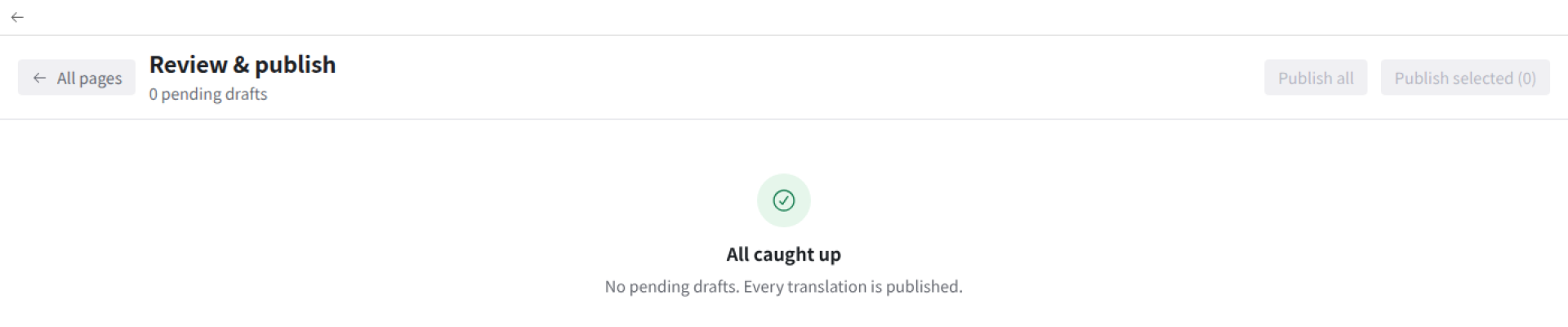
- Select Review & publish. The review screen lists the pending translation and marks it Needs review.
- Review the fields and choose Publish all. The tested screen then displayed All caught up and indicated that no drafts remained.
- Visit the translated route,
/ml.
On the test site, /ml displayed the Malayalam home page, while the English version at / remained unchanged.
Troubleshooting
ddev restartrejects the DDEV version. If the error refers to the>= 1.25.0requirement, upgrade DDEV and restart the project.- The web installer fails while installing Starter. In testing, the first attempt exceeded the installer's five-minute limit and a second attempt completed. The command-line approach in Step 2 also completed the unfinished installation in that environment. Check the installer logs before retrying on another site.
drush recipesays a module "is not a known module or theme". Rebuild Drupal's cache withddev drush cr, then rerun the recipe command.- Project Browser's Install button fails with
Html::escape(): Argument #1 ($text) must be of type string, null given. In Drupal CMS 2.2.7, testing showed the Multilingual card returning to Install after Composer downloaded the recipe. Package Manager excluded the new root-levelrecipes/directory from staged changes. Drupal CMS issue #3591498 describes a related problem and was closed on 28 October 2026. The tested failure was resolved using the Composer and Drush commands in Step 3. Another tested option was to runddev drush config:set package_manager.settings include_unknown_files_in_project_root 1 -ybefore the first Project Browser install attempt. That setting allows additional files at the project root into stage operations, so it should be reviewed against the site's deployment practices rather than treated as a general default. The fix's inclusion in Drupal CMS 2.2.8 has not been verified here. - Canvas Translate shows a blank screen. In the test, opening it over plain HTTP produced a
crypto.randomUUIDerror. Use the DDEV HTTPS URL. - The Translate dashboard or Review & publish shows "Something went wrong on our end". In the tested Starter installation, the failure was traced to the empty link value in the unused Utility page template. Saved translation drafts remained available after the template was removed as described in Step 8. To keep the template, open it, select Privacy policy in the preview menu and choose the page heading. Type
/into the empty Link field, remove it again, then review and publish the template change. This enabled the template and added a breadcrumb to Utility pages. - Publishing fails with "Invalid URL format". In testing, the editor saved a draft with non-ASCII characters in a button link, but publication failed. For example,
https://ml.wikipedia.org/wiki/കേരളംwas rejected, while the percent-encoded URLhttps://ml.wikipedia.org/wiki/%E0%B4%95%E0%B5%87%E0%B4%B0%E0%B4%B3%E0%B4%82worked. Encode non-ASCII characters in URL path segments and retry. - A label remains in English. Some interface or configuration strings may not have an available translation for the selected language. The Malayalam test site retained Utility page and Announcements in English.
What You Have Now, and What Comes Next
The tested site ended with a Malayalam home page at /ml and its original English page at /. The Multilingual recipe provided the language and translation foundations, but it did not translate all site content automatically. For example, the menu link still read Home in the Malayalam preview. Remaining checklist tasks cover translating other content, administration interface strings and configuration, including menu names and Views.
For larger amounts of text, the optional Canvas Translate AI submodule can help prepare drafts for human review. The Utility page template workaround in Step 8 was necessary for the versions tested on 1 November 2026; it may not be necessary on a newer installation. Before repeating that step, review changes to the Starter template and Canvas issue #3592174.
 Emily Mathew At TheDropTimes, I drive technical innovation and empower our team.
Image Attribution Disclaimer: At The Drop Times (TDT), we are committed to properly crediting photographers whose images appear in our content. Many of the images we use come from event organizers, interviewees, or publicly shared galleries under CC BY-SA licenses. However, some images may come from personal collections where metadata is lost, making proper attribution challenging.
Our purpose in using these images is to highlight Drupal, its events, and its contributors—not for commercial gain. If you recognize an image on our platform that is uncredited or incorrectly attributed, we encourage you to reach out to us at #thedroptimes channel on Drupal Slack.
We value the work of visual storytellers and appreciate your help in ensuring fair attribution. Thank you for supporting open-source collaboration!

ASK: Drupal Community Needs Your Support
View all →
Disclosure: This content is produced with the assistance of AI.
Note: The vision of this web portal is to help promote news and stories around the Drupal community and promote and celebrate the people and organizations in the community. We strive to create and distribute our content based on these content policy. If you see any omission/variation on this please reach out to us at #thedroptimes channel on Drupal Slack and we will try to address the issue as best we can.

Related Drupal Initiatives


Related Events
DrupalCon Rotterdam, 2026
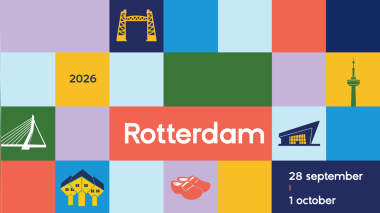


Rotterdam, Netherlands
Related Organizations

Related People


You may also like